The Complete Guide to Converting PDF Tables to CSV Format
Introduction: Why Convert PDF to CSV?
Have you ever found yourself staring at a PDF filled with valuable data, wishing you could edit, analyze, or manipulate it? You’re not alone. PDFs excel at preserving document formatting but fall short when you need to work with the actual data inside them.
This is where PDF to CSV conversion comes to the rescue. CSV (Comma-Separated Values) files are the universal language of data—compatible with Excel, Google Sheets, databases, and virtually any data analysis tool. Converting your PDF tables to CSV format unlocks this data for:
Data analysis in spreadsheet applications
Importing into databases and CRM systems
Merging with other datasets for comprehensive reporting
Automating workflows that involve structured data
The best part? Our converter works entirely in your browser—your sensitive data never leaves your computer.
How Our PDF to CSV Converter Works: A Technical Marvel
Unlike many online tools that require uploading your documents to external servers, our converter uses sophisticated JavaScript libraries to process your files locally. This approach offers three significant advantages:
Enhanced privacy: Your financial reports, client data, or research never gets transmitted over the internet
Faster processing: No waiting for file uploads or downloads—conversion happens instantly
No file size limitations: Since everything processes locally, you’re not constrained by upload restrictions
The tool uses advanced algorithms to detect table structures, identify rows and columns, and preserve the original data relationships during conversion.
Step-by-Step Conversion Guide
Step 1: Accessing the Tool
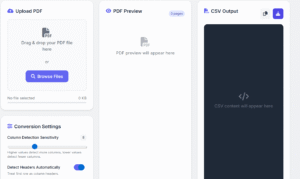
Simply open the PDF to CSV Converter in your web browser. There’s no installation required, and it works across all modern browsers including Chrome, Firefox, Safari, and Edge.
Step 2: Adding Your PDF
You have three convenient options to load your document:
Drag and drop your PDF directly onto the upload zone
Click the “Browse Files” button to select from your computer
Click anywhere in the dashed border area to open your file explorer
The interface provides visual feedback with color changes when you drag a file over it, confirming it’s ready for your document.
Step 3: Customizing Your Conversion
Before converting, fine-tune these settings for optimal results:
Column Detection Sensitivity
This slider controls how the tool identifies columns:
Higher values (15-20): Ideal for tables with clear spacing between columns
Medium values (8-14): Perfect for standard tables with moderate spacing
Lower values (2-7): Best for dense data with minimal column spacing
Header Detection
Toggle this option on when your table contains column headers that should be treated differently from data rows.
Step 4: Previewing Your Document
The converter displays thumbnail previews of your PDF pages, helping you verify you’ve selected the correct document. For multi-page PDFs, it shows the first few pages to confirm contents.
Step 5: Converting Your File
Click the “Convert to CSV” button to begin extraction. Conversion time varies based on:
Number of pages in your PDF
Complexity of table structures
Amount of data contained in tables
Step 6: Reviewing and Saving Results
Once conversion completes, the CSV output appears in the results panel. The converter:
Preserves the original table structure from your PDF
Encloses each value in quotes to handle commas within cells
Separates rows with line breaks and columns with commas
You have two options to save your data:
Download the CSV file to your computer
Copy the content to clipboard for pasting directly into spreadsheets
Advanced Tips for Flawless Conversions
Preparing Your PDF
For optimal conversion quality:
Use text-based PDFs rather than scanned images whenever possible
Ensure tables have clear visual separation between columns
Avoid complex merged cells or nested tables
For scanned documents, consider using OCR software first
Troubleshooting Common Issues
Columns appear merged: Increase the Column Detection Sensitivity
Data splits across too many columns: Decrease the sensitivity
Headers aren’t detected properly: Toggle the header detection setting
Missing data: Check if your PDF uses special characters or non-standard encoding
Working with Large Files
For PDFs with numerous pages or complex tables:
Consider breaking them into smaller documents
Convert one section at a time for better accuracy
Allow more processing time for larger files
Real-World Applications
Business and Finance
Financial professionals regularly use PDF to CSV conversion for:
Extracting financial reports for analysis in Excel
Converting invoice data for accounting systems
Processing bank statements for expense tracking
Analyzing quarterly reports from multiple sources
Research and Academia
Researchers benefit from PDF to CSV conversion by:
Transferring research data from published papers
Converting statistical tables for further analysis
Extracting references or bibliographic information
Compiling data from multiple studies for meta-analysis
Data Management
IT professionals and data analysts use conversion for:
Migrating data from legacy systems stored as PDFs
Converting government or public data into analyzable formats
Preparing data for import into database systems
Automating data extraction workflows
Privacy and Security: Our Top Priority
In an era of increasing data breaches and privacy concerns, our converter takes security seriously through:
Local Processing
All conversion happens within your browser using JavaScript—no server processing means no data transmission.
Zero Data Storage
Files are processed temporarily without being saved anywhere—not on our servers, not in your browser cache.
Transparent Operation
The tool uses open-source libraries, ensuring no hidden data collection or tracking.
Technical Requirements and Compatibility
Our converter works with:
All modern browsers (Chrome, Firefox, Safari, Edge)
PDF files containing text-based tables (not scanned images)
Standard table structures with clear row and column boundaries
For best results, use PDFs created from original digital documents rather than scanned copies of printed materials.
Conclusion: Liberate Your Data Today
Converting PDF tables to CSV format doesn’t require technical expertise or expensive software. Our browser-based PDF to CSV Converter provides a simple, secure solution for extracting tabular data from PDF documents while maintaining complete privacy.
Whether you’re a business professional working with reports, a researcher analyzing data, or simply someone who needs to extract information from PDFs, this tool offers the most convenient way to transform static data into editable, analyzable formats.
Try our PDF to CSV Converter today and experience the freedom of working with your data rather than against it.
You Can Try Our PDF to HTML Tool
The PDF to CSV Tool by TOP ONE NETWORK